What Are the Best Free WordPress Plugins for Beginners? (Web Designer Approved)

TL;DR Summary
Free WordPress Plugins
- Security & Backups: Wordfence for firewall protection, UpdraftPlus for automated cloud backups
- Essential Tools: Really Simple Security for SSL, CookieYes for GDPR-compliant cookie consent
- Performance & Analytics: Autoptimize to compress files and improve load time, Independent Analytics for privacy-friendly visitor tracking
- SEO & Forms: SEOPress for on-page SEO, WS Form for professional contact forms
- Site Management: Pretty Links for branded short URLs, Copy & Delete Posts to duplicate pages without starting from scratch
This post may contain affiliate links, which means I may receive a commission, at no extra cost to you, if you make a purchase through a link. Please see my full affiliate disclosure for further information.
Why the Plugins You Choose Matter
One of the best things about WordPress is how customizable it is. Want a contact form? There’s a plugin for that. Need better security? There’s a plugin for that too. But with tens of thousands of options in the repository, it’s easy to end up with a messy stack of plugins that conflict with each other, slow down your site, or quietly stop receiving updates.
Below you’ll find 10 free plugins I actually install and use on my own sites and on client sites. Each one has a clear job to do, and I’ve kept the list tight on purpose. More plugins is not better. Fewer plugins with a clear purpose is.
Before installing anything: check the last update date, confirm it’s compatible with your current version of WordPress, and look at the active installation count and review score. If a plugin hasn’t been updated in over a year, skip it.

Grab 5 Tips to Keep Your WordPress Website Safe!
Just Starting Out With WordPress?
If you’re brand new to WordPress and want guided video tutorials that walk you through everything from plugin setup to site management, I recommend the WP Wonder Lab Library Pass. It’s an on-demand library of bite-sized, practical WordPress tutorials from Michelle Lee. The Library Pass gives you unlimited access to tutorials you can work through at your own pace, whenever you need them.
It’s particularly useful for understanding how to install and configure the plugins on this list, so if you want to see exactly how to set things up behind the scenes, that’s a great place to start.

Now, here’s the list:
🔐 Security & Backups
These two are non-negotiable. Every WordPress site needs protection from malicious traffic and a reliable way to recover if something goes wrong.
Wordfence
Wordfence is one of the most widely used WordPress security plugins, and for good reason. The free version covers the basics well:
- A robust Web Application Firewall that blocks malicious traffic before it reaches your site
- Malware scanning to check your files against known threats
- Login security features including two-factor authentication and login attempt limits
- Real-time threat defense updates (premium) and regularly updated free definitions
For most small business websites, the free version of Wordfence is enough to get solid baseline protection.
UpdraftPlus
Backups are not exciting until you desperately need one. UpdraftPlus makes the backup process straightforward and reliable.
UpdraftPlus lets you:
- Schedule automatic backups on a daily, weekly, or custom schedule
- Store backups in the cloud — Google Drive, Dropbox, Amazon S3, and more
- Restore your site with a few clicks if something breaks
- Back up your entire site or just specific components
Set it up once, point it to cloud storage, and let it run. You’ll be glad you did.

🛠️ Essential Tools
These two plugins handle things that every website needs but that WordPress doesn’t handle natively.
Really Simple Security
Really Simple Security (formerly Really Simple SSL) makes the switch from HTTP to HTTPS seamless on WordPress. Having a valid SSL certificate—that padlock in the browser bar—is essential for user trust and a factor in how Google evaluates your site.
Beyond SSL, the plugin also handles some basic hardening tasks like disabling file editing in the dashboard, which is a quick win from a security standpoint. If you want to learn more about why SSL matters, I have a blog post on SSL certificates and website security.
CookieYes
Privacy laws in the EU, UK, California, and beyond require websites that use certain tracking tools to display a cookie consent notice and give visitors a way to opt out. CookieYes makes this manageable.
CookieYes helps you:
- Display a compliant cookie consent banner that visitors can interact with
- Manage and categorize cookies your site uses
- Generate and maintain a cookie policy
- Stay aligned with GDPR, CCPA, and other major privacy regulations

Note: On my own site, I use the cookie consent solution from Termageddon + Usercentrics, which comes with the legal pages bundle I recommend. If you’re already using a different legal page solution, the free version of CookieYes is an excellent standalone option. For more detail on cookie policies generally, check out my blog post on whether your site needs a cookie policy.
⚡ Performance & Analytics
Site speed affects user experience and search rankings. Even small improvements in load time can make a meaningful difference in whether visitors stay or leave.
Autoptimize
Autoptimize is a reliable performance plugin that works well across most hosting environments — including shared and budget hosting, which is where many beginners start. It:
- Minifies and combines HTML, CSS, and JavaScript files to reduce page size
- Optimizes image loading with lazy load support
- Reduces the number of server requests a page has to make
- Improves overall page load times without requiring technical configuration
Some managed or premium hosts handle some of these tasks at the server level, so if you’re already on a host with built-in performance features, test before layering on too much. For most sites on budget shared hosting, Autoptimize makes a noticeable difference.
📈 SEO & Forms
Making your site easy to find and easy to contact are two of the most practical things you can do to support your business through your website.
SEOPress
I use SEOPress on my own sites and recommend it to clients. The free version is genuinely capable:
- Edit meta titles and descriptions for every page and post
- Generate and submit an XML sitemap automatically
- Add Open Graph tags for better social media sharing
- Basic content analysis to check keyword usage and readability
It’s a solid alternative to Yoast SEO, with a cleaner interface and less upselling in the free version. If you want to dive deeper, SEOPress Pro adds schema markup, redirect management, and more—and it’s included for clients on the WordPress Admin Support add-on as part of the Strategic Content & Website System.

WS Form
For contact forms that go beyond the basics, WS Form is the plugin I reach for on my own and client sites. The free version does more than most comparable plugins on the free plan:
WS Form offers:
- A drag-and-drop builder with a clean, modern interface
- Multi-column layouts so forms don’t have to take up the whole page
- Conditional logic to show or hide fields based on responses
- Admin and submitter email notifications that are easy to configure
If you’ve been using a simpler form plugin and running into limitations, WS Form is worth switching to. I’ve found it more flexible and more reliable than some of the more popular alternatives.
🔗 Site Management
These two plugins handle practical day-to-day tasks that WordPress doesn’t do natively — and once you’ve used them, you’ll wonder how you managed without them.
Pretty Links
Pretty Links lets you create short, clean URLs that redirect to any destination. It’s particularly useful for:
- Managing affiliate links (example: lizhouston.com/updraftplus instead of a long tracking URL)
- Tracking click statistics on your links
- Keeping your links organized in one place
- Making links easier to share verbally or in print
I use Pretty Links to manage all my affiliate links. When a URL changes, I update it in one place and every instance across my site updates automatically.

Copy & Delete Posts
WordPress has no built-in way to duplicate a page or post. If you want to create a new sales page with the same structure as an existing one, you’re either starting from a blank page or manually copying content section by section. Copy & Delete Posts solves that.
Copy & Delete Posts adds a simple Duplicate link to any page or post in your WordPress dashboard. One click creates an identical draft you can rename and edit from there. I use it regularly for:
- Duplicating sales pages when creating a new offer with a similar structure
- Creating thank you pages that match an existing layout
- Building out product pages faster by starting from a working template
- Testing layout changes without touching the live version
It’s a small plugin with a clear job, and it’s one of those tools that quietly saves you time every single time you use it.
“Liz has been an outstanding Rockstar intern, providing tech support and encouragement to fellow members of the Rockstar Community. She has a great depth of WordPress knowledge and is happy to share what she has learned with others.
Liz goes the extra mile to help answer and research questions. She is very active in the Rockstar community and her helpful attitude provides a lot of inspiration to others. Liz is a wonderful asset to our community and I hope that she continues to help other WordPress developers with her expertise and valuable skills.”

Keeping Up With Maintenance Once Your Plugins Are In Place
Installing good plugins is step one. Keeping everything updated and running smoothly over time is the part that often gets forgotten.
Here’s what regular plugin maintenance actually looks like:
- Running WordPress core and plugin updates on a consistent schedule
- Watching for plugin conflicts after updates (test updates on a staging site when possible)
- Removing plugins you’re no longer using—inactive plugins can still be a security risk
- Keeping a record of what’s installed and why
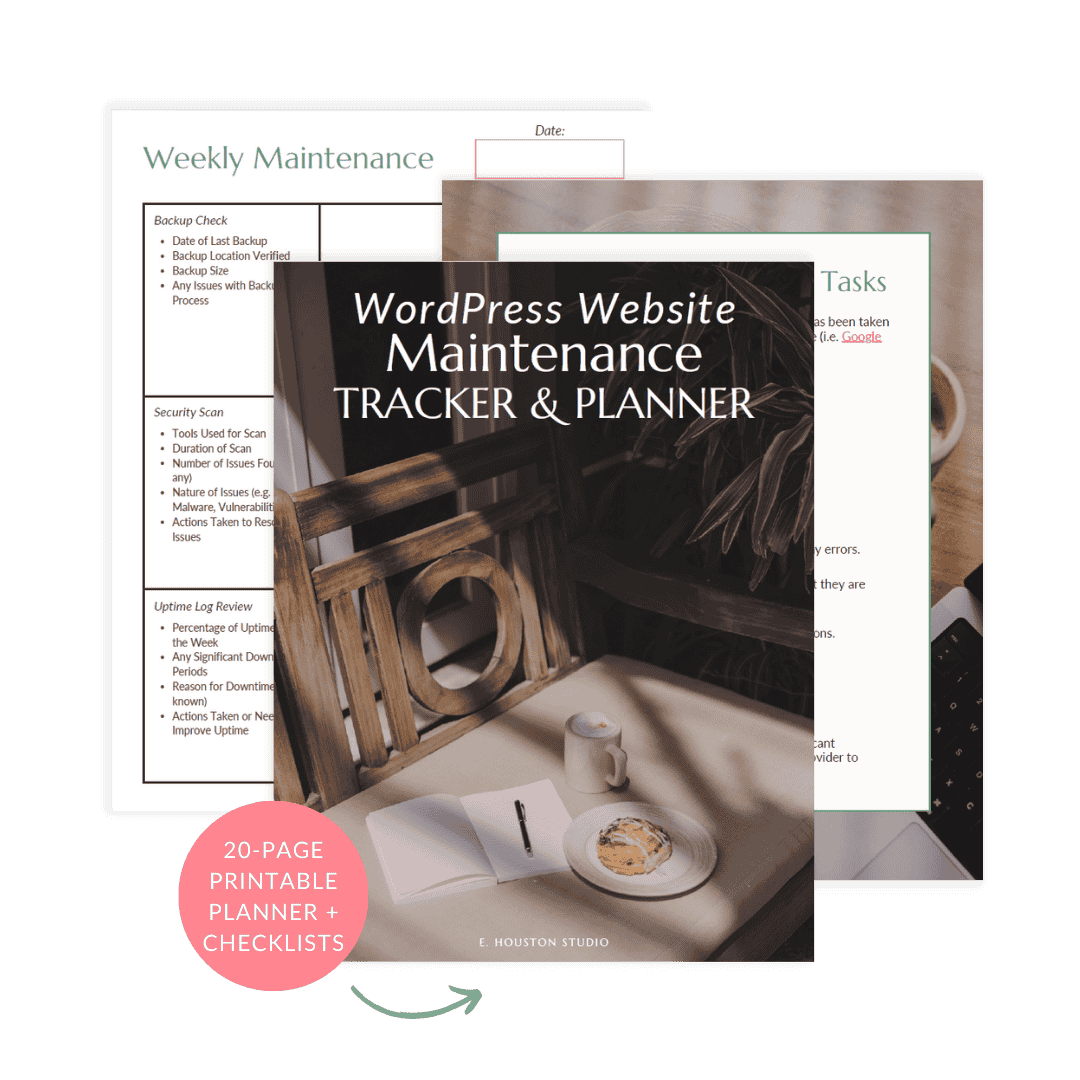
The WordPress Website Maintenance Tracker & Planner is a printable PDF system I created to help you stay on top of all of this. It includes weekly, monthly, quarterly, and annual maintenance checklists, plus space to log updates and track anything that breaks. It’s one of the simplest ways to stay organized and avoid the ‘something broke and I have no idea what changed’ scramble.
And if you’d rather not manage maintenance yourself at all, the WordPress Admin Support add-on within my Strategic Content & Website System handles routine updates, backups, security monitoring, and includes access to agency-level premium plugins—including plugins like SEOPress Pro—at no extra cost.
Frequently Asked Questions
How do I install and activate a WordPress plugin?
- Log in to your WordPress dashboard and navigate to the “Plugins” section
- Click on the “Add New” button
- Type in the name of the plugin you want to install in the search box, or upload the plugin’s zip file
- Click on the “Install Now” button
- Once the installation is complete, click on the “Activate” button to activate the plugin
How do I know if a plugin is safe to install?
Check three things: when it was last updated (anything over a year old is a flag), how many active installations it has (more is generally better for well-established plugins), and its review score. You can find all of this on the plugin’s page in the WordPress repository. The plugins on this list are all actively maintained and widely used.
How many plugins is too many?
There’s no single right number, but quality matters more than quantity. Every plugin should have a clear, necessary job to do. I’d rather see a site with 10 purposeful plugins than 30 where half are overlapping or unused. Deactivate and delete anything you’re not actively using.
What should I do if a plugin causes problems after an update?
Deactivate it first and see if the problem resolves. If your site breaks before you can get into the dashboard, you may need to deactivate via FTP or your hosting file manager. This is exactly why having UpdraftPlus set up before problems happen is so valuable—a fresh backup means you can restore and troubleshoot without losing anything.