
Do You Need an SSL Certificate on Your Website? What Every Business Owner Should Know
An SSL certificate encrypts data and acts as a visible trust signal that affects how visitors and search engines see your site. Here’s what you need to know.
This post may contain affiliate links, which means I may receive a commission, at no extra cost to you, if you make a purchase through a link. Please see my full affiliate disclosure for further information.

TL;DR Summary
SSL Certificates
- An SSL certificate encrypts data between your site and visitors, activating the padlock icon and https:// in the browser
- Even without an online store, you still need SSL as contact forms, email signups, and search rankings are all affected
- SSL is part of a broader trust picture: legal pages, a cookie consent banner, and secure hosting all work together
- Most modern platforms (WordPress, Showit, Squarespace, Wix) include free SSL certificates
SSL Is One Piece of a Larger Trust Picture
When a potential client lands on your website, they’re making a quick judgment about whether to stay or leave. Some of that judgment is conscious (e.g., does this look professional, does the messaging resonate), but a lot of it happens below the surface.
A missing padlock icon in the browser.
A “Not Secure” warning on a contact page.
Legal pages that don’t exist or aren’t linked anywhere.
These are the small details that quietly shape how trustworthy a site feels, often before a visitor has read a single word of your copy.
An SSL certificate is one of those details. It belongs in the same conversation as your legal pages, your cookie consent banner, and the other behind-the-scenes elements that tell visitors you take your business seriously.
This post covers what an SSL certificate actually is, why you need one even if you’re not selling online, how to set it up on the most common website platforms, and what to do once it’s in place.
“Liz has been so helpful and responsive with all of my questions! I don’t have to worry about any tech stuff because I know she has my back!♥️”

What Is an SSL Certificate? (The Simple Version)
SSL stands for Secure Sockets Layer. In plain terms, it’s a security protocol that encrypts the connection between your website and the people visiting it. When someone fills out your contact form, signs up for your email list, or simply browses your pages, that information travels more securely when SSL is active.
You’ve seen SSL in action countless times. It’s what puts the padlock icon next to a URL in the browser address bar, and it’s what changes a web address from http:// to https://
That “s” stands for secure.
- With SSL: Padlock icon visible, https:// in the address bar, browser shows no warnings
- Without SSL: “Not Secure” label in the address bar, potential browser warnings, reduced trust from visitors and search engines
SSL was once something only e-commerce sites needed to worry about. That’s no longer the case. Google began using HTTPS as a ranking signal in 2014, and browsers have become increasingly aggressive about flagging non-secure sites in the years since. Today, the padlock is a basic expectation. Its absence is noticeable in a way the padlock itself never is.
Why You Need SSL Even If You Don’t Sell Online
Do you really even need this if you’re not processing payments?
Yes. Here’s why:
- Contact forms transmit personal data. When someone submits their name, email address, or message through your contact form, that information travels between their browser and your server. Without SSL, that transmission is unencrypted.
- Email list signups are the same. Every opt-in form on your site is collecting personal data. GDPR, CCPA, and most other privacy regulations treat this as data that warrants protection regardless of whether money changes hands. (Learn more about GDPR in this free guide.)
- Search engines pay attention. Google has confirmed that HTTPS is a ranking factor. A non-secure site is at a disadvantage in search results compared to an equivalent secure site.
- Browsers warn visitors. Modern browsers flag non-secure pages, especially any page with a form. That “Not Secure” label in the address bar is visible to every visitor before they decide whether to fill out your contact form.
- It affects how you’re perceived. For service providers where trust is a key part of the buying decision, a security warning on your website works against every other credibility signal you’ve built.
Grab 5 Tips to Keep Your WordPress Website Safe!
How to Enable SSL on Your Website
The good news: on most modern platforms, SSL is either included automatically or straightforward to enable. You likely don’t need to purchase a separate certificate.
WordPress
On WordPress, SSL is often handled at the hosting level. Most reputable WordPress hosts provide free SSL certificates and handle the technical setup for you. Check your hosting dashboard under Security or SSL settings to confirm it’s enabled.
Once your host has SSL active, there’s one more step worth taking: make sure your site forces HTTPS across all pages. Some older WordPress sites with a mix of HTTP and HTTPS content will show a “mixed content” warning even with SSL enabled.
The Really Simple Security plugin (formerly Really Simple SSL) handles this cleanly. It redirects all HTTP traffic to HTTPS automatically and flags any mixed content issues. It’s free, well-maintained, and one of the few security plugins I recommend to clients regardless of their technical comfort level.
Showit
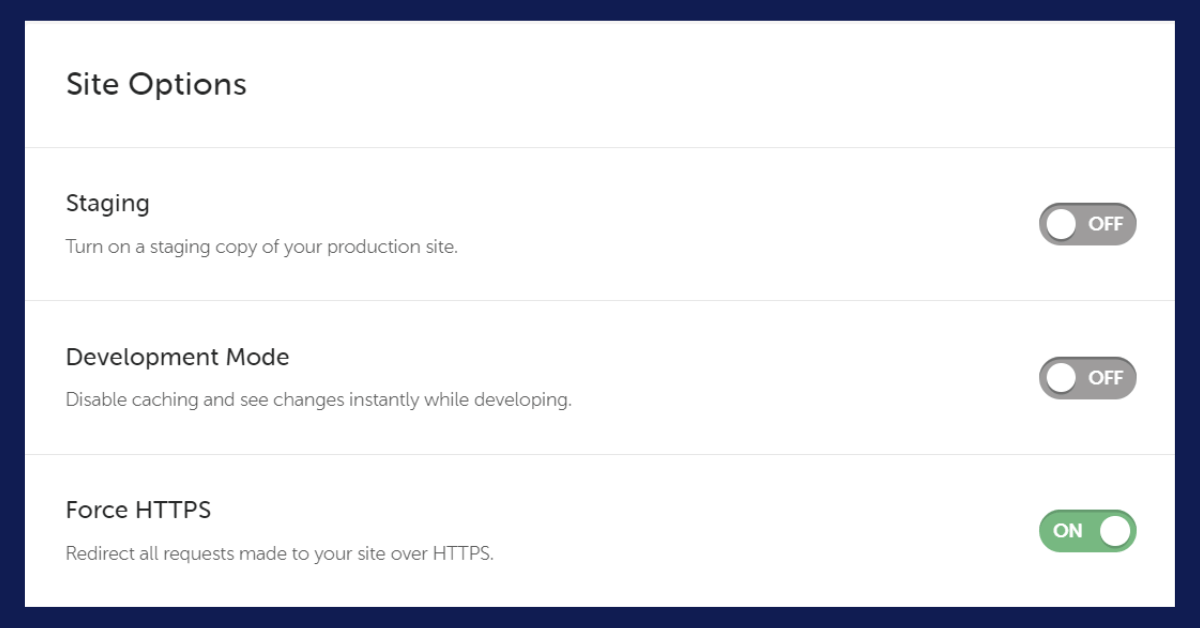
Showit includes a free SSL certificate with all hosting plans and enables it automatically. No extra steps needed.
SPECIAL DEAL: Get your first month free on Showit with my referral link (or use code: xjv1x5kt).
Squarespace
Squarespace makes SSL straightforward to manage:
- Go to Settings → Advanced → SSL
- Choose “Secure (Preferred)”
- Enable “HSTS Secure” for extra protection
- Save your changes

Wix
Wix includes SSL protection on all sites by default. It’s enabled automatically and cannot be accidentally turned off—one less thing to manage.
Maintaining Your SSL Certificate
Once SSL is active, there isn’t much ongoing maintenance required. A few things worth keeping an eye on:
Regular checks
- Look for the padlock icon when you visit your own site—including on internal pages, not just the homepage
- Check for any browser security warnings, especially after major site updates or platform migrations
- If you ever move your site to a new host or domain, confirm SSL is re-enabled on the new setup before going live
Common issues and quick fixes
If you see a “Not Secure” warning after SSL should be active, work through these steps:
- Confirm SSL is enabled in your hosting dashboard or platform settings
- Check for mixed content: images, scripts, or stylesheets still loading over HTTP (the Really Simple Security plugin handles this on WordPress)
- Clear your browser cache and reload the page
- Contact your hosting provider if the issue persists. It may be a server configuration problem on their end
You can also run your site through SSL Labs’ free SSL Checker for a detailed report on your certificate status.

SSL and Your Legal Pages
SSL secures the connection between your site and your visitors. Your legal pages—Privacy Policy, Terms of Service, Disclaimer, Cookie Policy—tell visitors what you do with the information you collect and how your site operates.
Both matter. A site with SSL but no privacy policy still has a gap in the trust picture. A site with comprehensive legal pages but no SSL certificate has a visible security warning working against all that effort.
If your legal pages aren’t published yet, or they’re sitting as drafts in your notes somewhere, that’s the next item on the list after SSL. This legal compliance post covers what’s needed and how to approach it without getting overwhelmed.
And if you have your legal page templates ready but need them properly published, formatted, and connected on your site—that’s exactly what my Legal Page Setup Boost covers.
Frequently Asked Questions
How do I know if my website has SSL enabled?
Look at your browser address bar when you visit your site. A padlock icon and https:// at the start of the URL confirm SSL is active. If you see a “Not Secure” label or an open padlock, SSL is either not enabled or not configured correctly. You can also run a detailed check at ssllabs.com/ssltest for a full report on your certificate.
What is the difference between HTTP and HTTPS?
HTTP (HyperText Transfer Protocol) is the standard communication protocol websites use. HTTPS adds a security layer—the “S” stands for Secure—by encrypting the connection using SSL or TLS. Practically speaking, HTTPS means the data traveling between your site and a visitor’s browser is encrypted and harder to intercept. Browsers display HTTPS sites with a padlock icon; HTTP sites often receive a “Not Secure” warning.
Do I need an SSL certificate if I don’t sell products online?
Yes. Any website that collects information through a contact form, email signup, or inquiry form is transmitting personal data. SSL encrypts that transmission. It also affects search rankings and how browsers display your site to visitors. The absence of SSL is more noticeable to potential clients than its presence, which makes it a basic trust requirement for any professional website.
How do I get a free SSL certificate for my website?
Most modern hosting providers and website platforms include free SSL certificates. On WordPress, most hosting providers handle this. Check your dashboard under Security or SSL settings. Showit and Wix enable it automatically. Squarespace allows you to set it under Settings, then Advanced, then SSL. If you’re on a host that doesn’t include SSL, switching to one that does is usually the simplest solution.
What should I do after enabling SSL on my website?
After enabling SSL, confirm the padlock icon appears on all your pages, not just the homepage. On WordPress, you can install the Really Simple Security plugin to force HTTPS site-wide and catch any mixed content issues if your host hasn’t taken care of this already. Check that your site URL is set to https:// in your settings, and update any internal links that still reference http://. If you’re using analytics software or Google Search Console, update the property settings to reflect the secure URL.