What’s the Difference Between WordPress Themes, Templates, and Template Kits?
Choosing a WordPress template can feel overwhelming—trust me, I’ve gone down some template marketplace rabbit holes! After helping clients customize their WordPress sites, I’ve learned what works, what doesn’t, and most importantly, how to avoid the common pitfalls that can make the process frustrating.
Here’s the thing: WordPress design terminology can be confusing, even for experienced users.
When someone says “template,” do they mean a theme? A child theme? A template kit? I hear these terms used interchangeably all the time, but understanding the differences will help you choose the right option for your site.
This post may contain affiliate links, which means I may receive a commission, at no extra cost to you, if you make a purchase through a link. Please see my full affiliate disclosure for further information.

TL;DR Summary
Themes & Templates
- A parent theme controls your site’s structure and core styling (ex: Kadence)
- A child theme adds a unique design layer on top—ideal for branding + future-proofing
- A template is a layout for specific content (like blog posts or archive pages)
- A template kit is a full set of styled page designs (popular with Elementor users)
- Use trusted template creators like Restored316, BluChic, Davey & Krista, or StyleCloud
What’s a WordPress Template (And Do You Need One)?
Building a WordPress site from scratch requires significant development time and expertise. Templates provide a professional foundation and the essential functionality so you can focus on customizing the design to match your brand.
The Difference Between Themes, Child Themes, and Templates
First up, let’s look at these WordPress design terms—I promise it’s less complicated than it seems:
Parent Themes
Your parent theme (like Kadence) is your site’s foundation. It controls basic functionality and provides core design features. Think of the free Kadence theme, which comes with essential customization options and works seamlessly with the WordPress block editor.

Child Themes
A child theme adds your specific design on top of the parent theme’s foundation. For example, Restored316 Designs creates beautiful child themes specifically for Kadence. Using a child theme ensures your customizations stay intact when the parent theme updates.
Templates
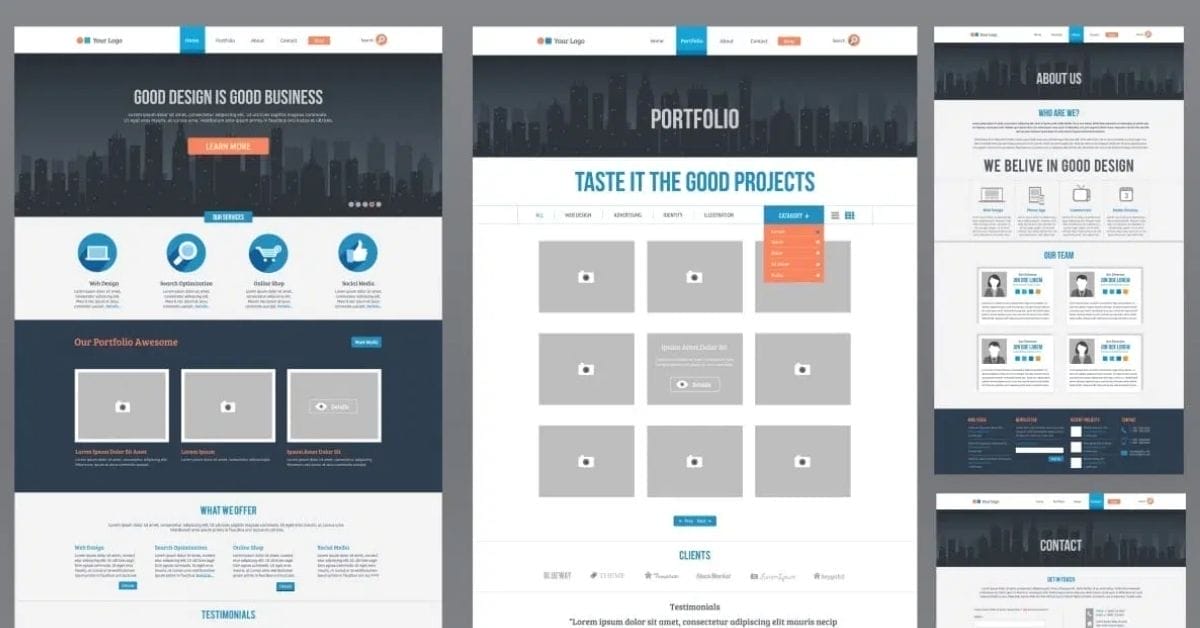
Templates determine how different parts of your site display. Your theme (or child theme) includes templates for things like blog posts, archive pages, and product layouts.
Template Kits
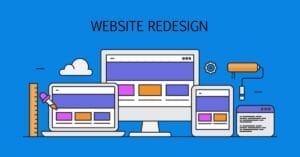
If you’re using Elementor as your page builder, you have another option: template kits. These provide complete website designs you can import, including coordinated page layouts, headers, footers, and even popups. You can use these kits to build a new site or add designed pages to your existing site.

Finding Your Perfect Starting Point
If you haven’t explored it yet, the WordPress theme directory offers thousands of free options, but… not all themes and templates are created equal.
Free themes from the WordPress directory can come with several downsides:
- Limited customization options
- Minimal (or no) support when issues arise
- Potential security vulnerabilities if not regularly updated
- Basic designs that may look like many other sites
- Hidden costs for premium features you might need later
When choosing a theme or template, look for:
- Layouts that support your content strategy
- Built-in features your business requires
- Design flexibility for your brand
- Regular updates and reliable support
- Clear documentation and setup guides
My Recommended Sources
For Kadence Websites:
- Restored316 Designs creates beautiful, functional child themes that work with the free Kadence theme and Kadence blocks
- StyleCloud offers Kadence starter themes and ready-made layouts to jumpstart your design
For Elementor Sites:
- Bluchic provides professional themes and templates built specifically for Elementor
- Elementor’s Template Library gives you access to complete website templates and kits you can customize
- Davey & Krista offer premium Elementor templates with their signature clean, professional style

Making Your Template Your Own
Basic Customization Anyone Can Do
Premium templates include built-in options to change colors, fonts, layouts, and more. Most customization happens in two places:
- Your theme’s Customizer panel for site-wide changes
- The block or page builder editor for specific page designs
Kadence Resources
If you’re using a Kadence child theme (like those from Restored316 Designs), here’s where to start:
- The Styling Kadence workshop from Restored316 teaches you to customize everything from your homepage to your navigation menu in under 90 minutes
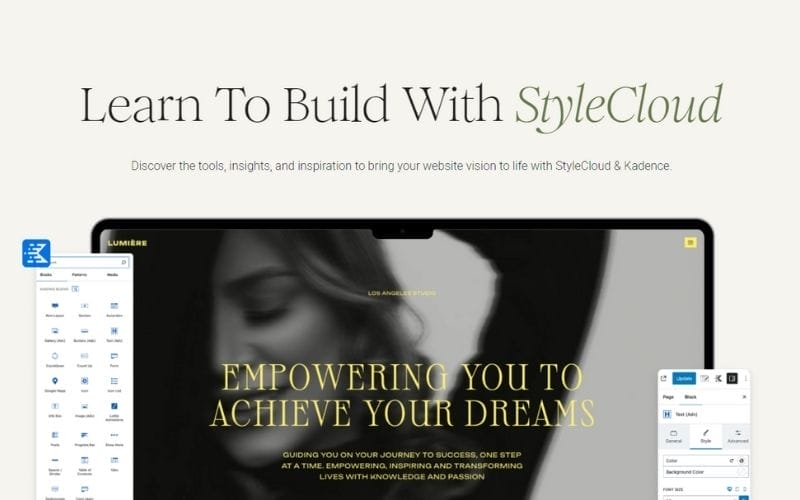
- Learn Kadence Course from StyleCloud helps you master Kadence blocks and theme settings
- Nicola Tweed’s tutorials walk you through specific Kadence customizations
Elementor Resources
Working with Elementor? Check out:
- Bluchic’s step-by-step customization guides for their templates
- Web Squadron’s Elementor courses for deeper page builder mastery
- The official Elementor Template Library tutorials
Learn Advanced Skills
- Web Squadron’s CSS Course helps you further customize any WordPress theme or template (not just those built with Elementor)
- StyleCloud‘s advanced Kadence tutorials
- Your template creator’s advanced documentation
“I can’t recommend Elizabeth Houston highly enough. I had a major issue with my WordPress site that needed urgent attention, and she jumped in right away. Not only did she quickly identify and fix the problem, but she also went above and beyond by flagging and resolving other issues she noticed along the way (that I didn’t even see!).
Elizabeth is incredibly easy to work with, communicates clearly, and brings deep expertise in website design. She made what felt like a stressful situation totally manageable. If you’re looking for someone who’s both skilled and dependable, Elizabeth is the pro you need. I’d work with her again in a heartbeat.”

Common Template Frustrations (And How to Fix Them)
Template Loading Issues
Slow-loading templates usually come down to a few fixable problems:
- Oversized images
- Too many active plugins
- Hosting that can’t handle your site’s needs
- Unoptimized code in free templates
Quick fixes:
- Optimize your images before uploading
- Deactivate plugins you don’t need
- Consider upgrading to managed WordPress hosting

Mobile Display Problems
Your template should look great on all devices. Common mobile issues include:
- Text too small or large on phones
- Images breaking layouts
- Menus not working properly
Premium templates from shops like Restored316 and Bluchic come fully tested for mobile devices. They also provide support if you run into display issues—a major advantage over free templates.
Technical Maintenance
Keeping your site secure and running smoothly requires regular maintenance:
- Theme and plugin updates
- Regular backups
- Security monitoring
- Performance optimization
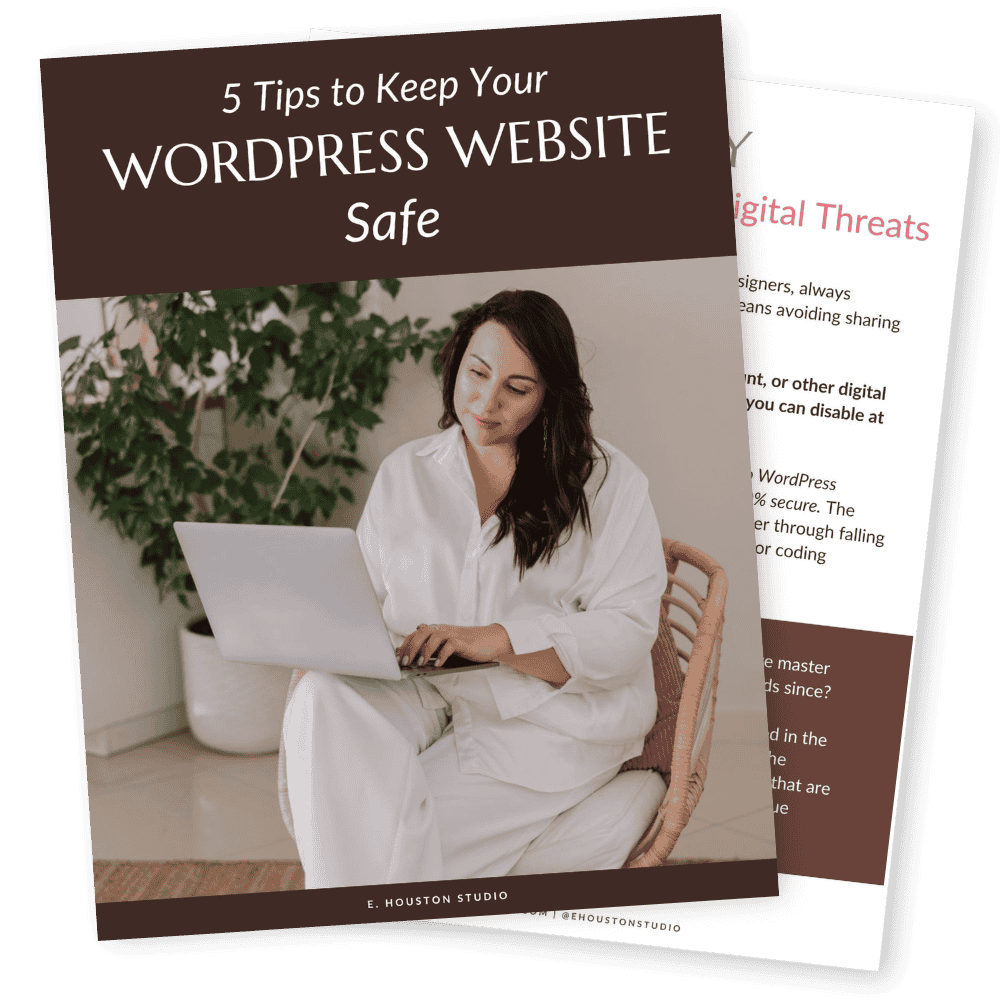
Want to learn more about WordPress maintenance? Grab my free guide “5 Tips to Keep Your WordPress Website Safe” to protect your site investment.
Grab 5 Tips to Keep Your WordPress Website Safe!
Transform Your Template Into Your Dream Site
There’s a lot to consider when choosing and customizing your WordPress template. The good news? You don’t have to figure it all out alone.
Get Started Today:
- If you’re using WordPress with Kadence, join my free 30-Day WordPress Website Challenge. You’ll learn the essentials step by step, delivered right to your inbox.
- Need help maintaining your WordPress site? Download my free guide 5 Tips to Keep Your WordPress Website Safe.
Have questions about choosing or customizing your WordPress template? Send me a message—I’m happy to point you toward the best resources for your specific needs, including template recommendations for other page builders or platforms like Showit and Squarespace.
Frequently Asked Questions
What’s the difference between a WordPress theme and a template?
A theme is your overall site design (structure, layout, styles). A template is a layout for one specific type of content—like blog posts or product pages. Themes often include multiple templates.
Should I use a child theme with Kadence or Elementor?
Yes! A child theme lets you customize your site without losing changes when the parent theme updates. Shops like Restored316 or Bluchic offer excellent options for each.
What is a WordPress template kit?
Template kits (often used with Elementor) are bundles of pre-designed pages, headers, and footers you can install all at once—great for building fast, professional-looking websites.
How do I customize a WordPress template without knowing code?
Use your theme’s Customizer or the WordPress block editor to change fonts, colors, and layouts. Premium templates usually come with detailed guides to help you make changes confidently.